
Stop Prompting for Your Logo. Graft the Letters.
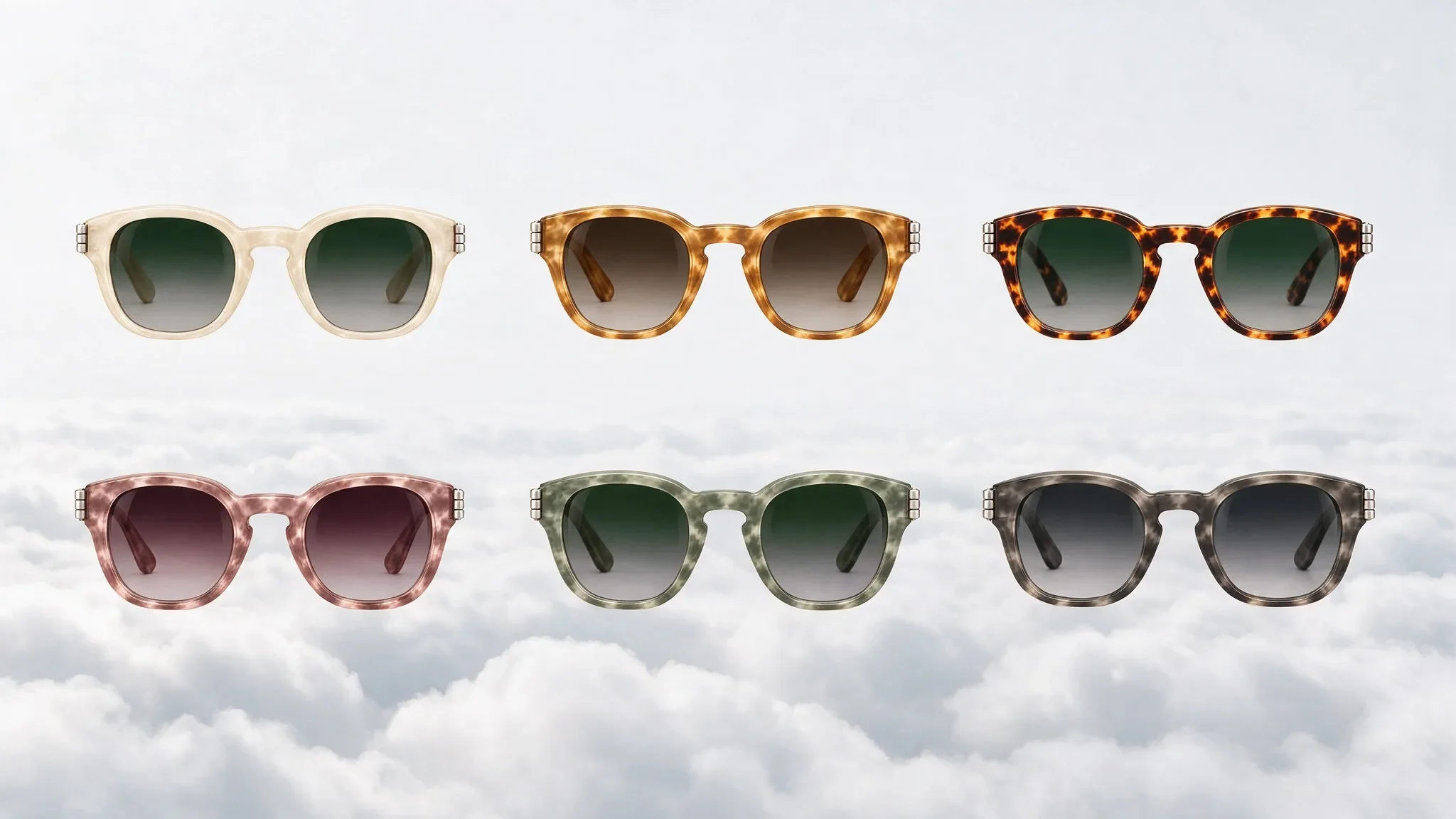
Every shot we generated smudged or misspelled the lettering, and Magnific invented letters. The version that shipped measured the top edge of the temple arm at 24.0 degrees and rotated the wordmark to match.
Key takeaways
- Asking the image generator for lettering failed in every shot we generated, so a wordmark on a product has to come from a reference image.
- Arial at about 5 px on a 23 px temple arm read as a sticker at any zoom. Upscaling the frame 2x took the arm to about 51 px, and the fix was resolution first, not a better font.
- The fitted top edge measured 24.0 degrees. The eyeballed 22.8 degrees was wrong, and a 1.2 degree error visibly walks the word off the arm.
- Rotate the letters by the measured angle, never skew them. Perspective mode on a three-quarter frame read as a staircase.
- Size the wordmark at about 1.5x the arm height. On a 70 px arm at 2x, the final length was 106 px.
Why the generator cannot spell your logo
If you need to add a logo to an AI generated image, start with the reference, not the prompt. Asking the image generator for the lettering failed in every shot we generated. Small wordmarks came out smudged or misspelt, and Magnific invented letters that were never on the product.
This was not a single bad frame. It held across the shots we generated, and it is the reason this workflow exists. Small wordmarks are where it broke, and small wordmarks are where most product work needs them.
A wordmark on a product is identity, the same as a face, so it has to come from a reference image. The studio's own reference frame already carries the real letters. The job is to cut them out of that frame and place them on the generated one.
That is why the workflow below has two halves. The first is preparing the frame so the letters have enough pixels to hold. The second is placing the cut letters with measured geometry. Both halves replace the step that failed, which was asking the model to spell the word again.
Fix the resolution before you touch the typeface
A font at native resolution failed too. Arial at about 5 px on a 23 px-tall temple arm read as a sticker at any zoom. The fix was resolution first, not a better font. No typeface change makes a 5 px letter hold up on a 23 px surface, so the work starts with the frame.
Our order of operations for the frame:
- Upscale the frame 2x with Photoshop Preserve Details.
- The arm goes from about 23 px to about 51 px tall.
- The reference letters, which are 24 px, are downscaled to fit. They are not upscaled.
The reference is therefore the only element that shrinks, and the frame is the only element that grows. After the upscale, the arm has real pixel height to carry the letters, and the cut reference is sized into that height rather than forcing the frame to match the letters.
Thin arms need one more fix. On an arm 20 px or less at 1x, content-aware fill left a transparent band, because it sampled the skin around the arm rather than the arm itself. Cloning the arm's own texture from a copy, shifted along the arm, filled the band and gave the graft a surface to sit on. Check this before placing any letters, because a band left in the surface shows through the wordmark.
Measure the angle, then rotate the letters
Eyeballing the edge is the easiest way to misplace a wordmark. Measuring the edge angle beats eyeballing it. The fitted top edge came out at 24.0 degrees, with 30 of 34 inliers agreeing with the fit. The eyeballed estimate of 22.8 degrees was wrong. A 1.2 degree error is enough to visibly walk the word off the arm, so a figure that looks close on screen is not close enough.
Once the angle is measured, rotate the letters by it. Do not skew them vertically. Our review rejected the skewed version because the letters leaned the wrong way against the arm. The word has to sit on the arm the way the arm sits in the frame, and a skew distorts the letters to fit a slope they do not follow.
Perspective mode failed on a three-quarter frame. The top edge sat at 5.5 degrees and the bottom at 1.0 degrees. Letter tops and bottoms then ran at different slopes, and the word read as a staircase. We shipped rotate mode instead, using the top-edge angle with a constant letter height.
The working rule is to measure one edge, rotate by its angle, and hold the letter height constant across the whole word. Perspective mode is the wrong tool whenever the two edges of the arm disagree this much.
Size, matte and the one-layer rule
Size the wordmark at about 1.5x the arm height. Our first pass at 1.9x was too big, and 1.2x was too small. On a 70 px arm at 2x, the final wordmark length was 106 px. The ratio is the rule to carry forward, and the pixel figures are one example of it.
Extraction needs its own tuning. Thresholds set on the letter highlight kept only the hollow edges of each letter, so the letters came out as outlines. Retuning the matte to the letter body, 70 to 125 instead of 90 to 160, gave solid, full-weight letters. The matte has to describe the body of the letter, not its brightest rim.
Effects are the other trap. Photoshop layer-style descriptors repeatedly refused on the live document with 'The command Set is not currently available'. Baking the effects in Python and placing one plain pixel layer worked. The effects are finished before the layer reaches the document, so Photoshop only receives pixels.
The order in this section follows the document: size the wordmark, tune the matte, then bake and place the single layer. Changing the size after the bake means baking again, so settle the size first.
Why generation worked once, at one pose
We also asked an image-editing model directly for an engraved temple wordmark. It worked once. The correct spelling came out at a near-profile pose, where the arm faces the camera flat.
At three-quarter the W foreshortened and came out as an M. With hair over the arm, there was no surface to print on at all. The model had no visible plane to draw the letters on in that frame.
The result splits by geometry. A flat, visible arm is the one condition where direct generation produced the right letters. A foreshortened arm or a hidden one is where it failed. One success at one pose is not a production method, so the graft stays the default and generation is the exception.
The practical consequence is to check the pose before you choose the method. If the arm is near-profile and visible, generation is worth one attempt. If it is three-quarter or covered, plan the graft from the start.
Pipeline order that held up
The sequence that held up on the real frames, in order:
- Clean the garbled frame.
- Upscale 2x.
- Measure the edge.
- Cut and graft.
- Check a zoomed-out view and a 300%-plus crop.
Check legibility and close-up sharpness separately, because they fail differently. The zoomed-out view tests whether the word reads and sits at the right size. The 300%-plus crop tests the sharpness of the letters and the edges left by the matte.
A wordmark can pass the first check and still fail the second, which is why both checks are part of the sequence rather than one review at the end. Run the zoomed-out view first, because a word that does not read at full frame is not worth inspecting up close.
The measurement comes before the cut in this order. The angle and the size are fixed in the measuring and sizing steps, so the cut is placed once against a settled geometry.
Related
Local Voice Acting Speed Is Set by Layers, Not VRAM
Eight expert layers ran at 2.5 frames per second; twenty ran at 22.1. VRAM sat near 16 GB at every setting, so memory was never the speed knob in our AI voice acting TTS runs.
Upscaling AI Video Without Plastic Skin
The upscaler with the best sharpness score was the one a producer rejected. Here is what we tested, what each one did to faces and products, and how to check an upscale properly.

MiniMax H3 Needs a Schema, Not Prose
We rewrote a camera move and the walk direction and got a byte-identical video. We changed only the seed and got a different film. What H3 actually listens to, measured on a local 16 GB GPU.